On the Source code tab page, select the action taken when double-clicking on a line in the report viewer.
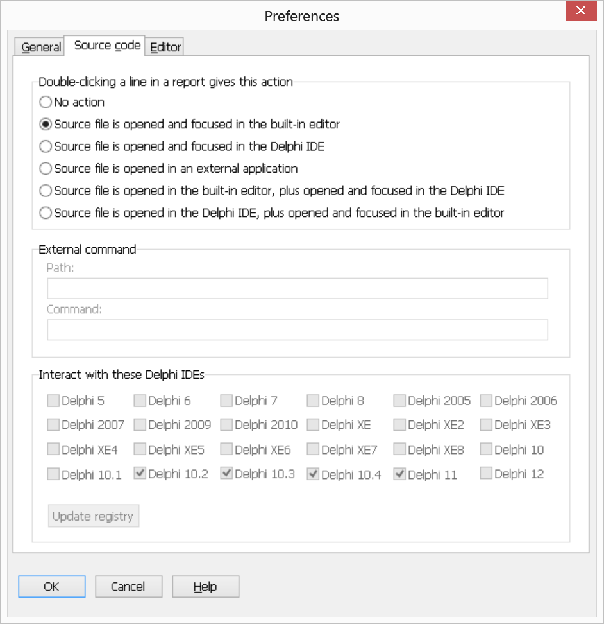
Double-clicking a line in a report gives this action
These options are available:
No action
Nothing happens when double-clicking.
Source file is opened and focused in the built-in editor (default)
If you want to quickly view the source code line, this is a convenient option. The file is opened in the built-in editor. plus a button that closes the window.
Source file is opened and focused in the Delphi IDE
If Delphi is running, control is transferred to the source file in the code editor. This option works with Delphi from version 5.
Source file is opened in an external application
If this option is selected, you must enter a complete path to the application, and a command-line.
Source file is opened in the built-in editor, plus opened and focused in the Delphi IDE
This is a combination of the options to open in the built-in editor and in the Delphi IDE. The Delphi IDE will be focused
Source file is opened in the Delphi IDE, plus opened and focused in the built-in editor.
This is a combination of the options to open in the Delphi IDE and in the built-in editor. The editor will be focused
Path
Enter a complete path to the application, e.g "C:\WINDOWS\Notepad". This option is only relevant when "Source file is opened in an external application" has been selected.
Command
Enter a command-line that is supplied as a parameter. In the command-line, use "%1" for the source file path and "%2" for the row number. These strings will be substituted for the real values when the call is done.
This option is only relevant when "Source file is opened in an external application" has been selected.
For example, when configuring Notepad to open the source file, enter "C:\WINDOWS\Notepad" as path, and "%1" for command.
Interact with Delphi IDEs
The plugins PALWIZ*.DLL enable Delphi to show the relevant code module when double-clicking on a report line in Pascal Analyzer.
For all installed versions of Delphi 5, 6 and 7, the wizard will be registered under the following registry key:
HKEY_CURRENT_USER\Software\Borland\Delphi\x.0\Experts
(exchange “x” for the version number).
For other versions:
Delphi 8
HKEY_CURRENT_USER\Software\Borland\BDS\2.0\Experts
Delphi 2005
HKEY_CURRENT_USER\Software\Borland\BDS\3.0\Experts
Delphi 2006
HKEY_CURRENT_USER\Software\Borland\BDS\4.0\Experts
Delphi 2007
HKEY_CURRENT_USER\Software\Borland\BDS\5.0\Experts
Delphi 2009
HKEY_CURRENT_USER\Software\CodeGear\BDS\6.0\Experts
Delphi 2010
HKEY_CURRENT_USER\Software\CodeGear\BDS\7.0\Experts
Delphi XE
HKEY_CURRENT_USER\Software\Embarcadero\BDS\8.0\Experts
Delphi XE2
HKEY_CURRENT_USER\Software\Embarcadero\BDS\9.0\Experts
Delphi XE3
HKEY_CURRENT_USER\Software\Embarcadero\BDS\10.0\Experts
Delphi XE4
HKEY_CURRENT_USER\Software\Embarcadero\BDS\11.0\Experts
Delphi XE5
HKEY_CURRENT_USER\Software\Embarcadero\BDS\12.0\Experts
Delphi XE6
HKEY_CURRENT_USER\Software\Embarcadero\BDS\14.0\Experts
Delphi XE7
HKEY_CURRENT_USER\Software\Embarcadero\BDS\15.0\Experts
Delphi XE8
HKEY_CURRENT_USER\Software\Embarcadero\BDS\16.0\Experts
Delphi 10
HKEY_CURRENT_USER\Software\Embarcadero\BDS\17.0\Experts
Delphi 10.1
HKEY_CURRENT_USER\Software\Embarcadero\BDS\18.0\Experts
Delphi 10.2
HKEY_CURRENT_USER\Software\Embarcadero\BDS\19.0\Experts
Delphi 10.3
HKEY_CURRENT_USER\Software\Embarcadero\BDS\20.0\Experts
Delphi 10.4
HKEY_CURRENT_USER\Software\Embarcadero\BDS\21.0\Experts
Delphi 11
HKEY_CURRENT_USER\Software\Embarcadero\BDS\22.0\Experts
Delphi 12
HKEY_CURRENT_USER\Software\Embarcadero\BDS\23.0\Experts
If you install any Delphi version after Pascal Analyzer has been installed, the registry settings have to be updated. In this case, enter the Preferences dialog, mark check boxes and click the button Update registry.
After clicking Update registry, the changes will take place the next time you start the Delphi IDE. Of course, because the registry is modified, you must run under an account that is allowed to do this, when clicking this button.
When updating the registry, the changes are immediately applied, regardless if you leave the dialog by pressing the OK or Cancel button.
Buffered viewer
Default = Yes
Select this checkbox to load source files in a more efficient manner. The drawback is that the source code file is locked by the viewer, so it cannot be edited by another application. For example, if the file is loaded in the viewer you cannot at the same time edit and save it in the Delphi IDE. If you want to be able to do so, you must deselect this option. This may give longer loading times especially for large source code files.
Show line numbers
Default = Yes
Select this checkbox if you want line numbers to appear in the left margin of the source viewer window.
Expand tab characters
Default = 8
Select the number of characters that a TAB character should be expanded to, when viewing source code.
See also: